

What Is Client-Side Performance? Core Web Vitals, INP and 13 Ways to Improve It
Client-side performance is how quickly a web page loads, renders and responds to input in the user's browser. It depends on how much code and media you ship, how the browser processes it, and how powerful the visitor's device and network are. Server speed matters too, but this guide covers what happens after the first byte arrives.
Slow pages cost engagement and conversions, and Google uses page experience signals, including Core Web Vitals, as part of ranking. The most reliable way to improve performance is to measure real users first, then fix the biggest bottleneck.
Last reviewed October 2026.
What to Measure: Core Web Vitals
Google's Core Web Vitals are the three metrics most worth tracking:
| Metric | Measures | Good (75th percentile) |
|---|---|---|
| Largest Contentful Paint (LCP) | Loading: when the largest visible element renders | 2.5 s or less |
| Interaction to Next Paint (INP) | Responsiveness: delay between a user action and the next paint | 200 ms or less |
| Cumulative Layout Shift (CLS) | Visual stability: how much content jumps around | 0.1 or less |
INP replaced First Input Delay (FID) as a Core Web Vital in March 2024. Supporting metrics such as First Contentful Paint (FCP) and Time to First Byte (TTFB) help you diagnose why LCP is slow.
Lab data vs field data (RUM)
Lighthouse and WebPageTest give lab data: a single controlled test. They are good for debugging but can miss problems that only real devices and networks reveal. Field data, also called real user monitoring (RUM), records what actual visitors experience. The Chrome UX Report, the Core Web Vitals report in Search Console, and the web-vitals library all provide it.
import { onLCP, onINP, onCLS } from "web-vitals";

function send(metric) {
  navigator.sendBeacon("/analytics", JSON.stringify(metric));
}

onLCP(send);
onINP(send);
onCLS(send);
Look at the 75th percentile, not the average, and segment by mobile vs desktop. If INP is poor, the usual causes are long JavaScript tasks and heavy event handlers (see sections 5, 9 and 12).
1. Minimize HTTP Requests
One of the most effective ways to speed up a web application is by reducing the number of HTTP requests. Each request adds overhead, including DNS lookups, TCP handshakes, and latency.
Techniques to Minimize HTTP Requests
- Combine Files: Combining multiple CSS and JavaScript files into a single file reduces the number of HTTP requests.
- Use SVG sprites for icons: An SVG sprite sheet serves many icons in one file. (Image sprites matter less than they used to, because HTTP/2 and HTTP/3 handle many parallel requests well, so measure before bundling everything.)
- Inline Assets: For small images or icons, consider inlining them directly into your HTML or CSS using Data URIs. This eliminates the need for separate HTTP requests.
Example: Combining CSS Files
/* Before: Separate CSS files */
<link rel="stylesheet" href="styles/base.css" />
<link rel="stylesheet" href="styles/layout.css" />
<link rel="stylesheet" href="styles/theme.css" />

/* After: Combined CSS file */
<link rel="stylesheet" href="styles/combined.css" />
By minimizing HTTP requests, you can significantly reduce the initial load time of your application, leading to a better user experience.
2. Optimize Images
Images are often the largest assets on a webpage, and optimizing them is crucial for improving performance.
Image Optimization Techniques
- Choose the Right Format: Use AVIF or WebP for photographs where supported, with JPEG as a fallback; use SVG for vector graphics. Set explicit
widthandheightto prevent layout shift, and never lazy-load the LCP image. - Compress Images: Use tools like ImageOptim, Squoosh or your framework's image component to compress images without losing quality. This reduces the file size, making images load faster.
- Lazy Loading: Lazy loading defers the loading of images until they are needed, such as when they appear in the viewport. This reduces the initial load time of the page.
Example: Implementing Lazy Loading
<img src="image.jpg" loading="lazy" alt="Example Image" /> By optimizing images, you can drastically reduce the load time and improve the overall performance of your web application.
3. Leverage Browser Caching
Browser caching stores static files, such as images, CSS, and JavaScript, locally on the user's device. This allows the browser to load these files from the local cache instead of making new requests to the server.
How to Implement Browser Caching
- Set Cache-Control Headers: Use HTTP headers to define how long browsers should cache files. For example, setting a max-age directive tells the browser how long a file should be cached.
Example: Setting Cache-Control Headers
<filesMatch ".(html|css|js|png|jpg|jpeg|gif|svg)$">
  Header set Cache-Control "max-age=31536000, public"
</filesMatch> - Use Versioning: When updating files, use versioning (e.g., style.v2.css) to ensure that users receive the latest version.
By leveraging browser caching, repeat visits to your site will be significantly faster, as the browser can retrieve assets from the cache instead of downloading them again.
4. Minify CSS, JavaScript, and HTML
Minification is the process of removing unnecessary characters from code, such as white spaces, comments, and line breaks, without changing its functionality. This reduces the file size, making it quicker to download.
Minification Tools
- CSS: Tools like
cssnanoorclean-csscan minify CSS files. - JavaScript: Use tools like
Terseroresbuildto minify JavaScript files. - HTML: HTML can be minified using tools like
HTMLMinifier.
Example: Minifying JavaScript with Terser
terser script.js -o script.min.js Minification is a quick win that can lead to substantial performance improvements, especially on slower networks.
5. Defer or Asynchronously Load JavaScript
JavaScript files can block the rendering of your page, leading to slower load times. By deferring or asynchronously loading JavaScript, you can improve the initial rendering of your webpage.
How to Defer or Async JavaScript
- Defer: The
deferattribute tells the browser to continue loading the HTML content while the JavaScript is being fetched and executed.
Example: Using Defer
<script src="script.js" defer></script> - Async: The async attribute allows the script to be fetched in parallel with other resources and then executed as soon as it’s available.
Example: Using Async
<script src="script.js" async></script> Choosing the appropriate loading strategy for your JavaScript files can have a profound effect on your page’s load time and overall performance.
6. Reduce the Impact of Third-Party Scripts
Third-party scripts, such as analytics, ads, and social media widgets, can introduce significant performance bottlenecks. These scripts often load from external servers, adding latency and potentially blocking the main thread.
Techniques to Optimize Third-Party Scripts
- Load Scripts Asynchronously: Load third-party scripts asynchronously to prevent them from blocking the main thread.
- Defer Non-Critical Scripts: Defer the loading of non-critical third-party scripts until after the page has loaded.
- Monitor Performance: Regularly monitor the impact of third-party scripts on your site’s performance and remove or replace those that are causing significant slowdowns.
Example: Asynchronously Loading a Third-Party Script
<script async src="https://example.com/third-party-script.js"></script> Optimizing third-party scripts is essential for maintaining a fast, responsive web application, particularly on mobile devices.
7. Use Content Delivery Networks (CDNs)
A Content Delivery Network (CDN) is a network of servers distributed across various locations worldwide. CDNs store copies of your site’s static content (e.g., images, CSS, JavaScript) and serve them from the nearest server to the user, reducing latency and speeding up load times.
Benefits of Using a CDN
- Reduced Latency: By serving content from the nearest server, CDNs reduce the time it takes for users to receive data.
- Increased Availability: CDNs can handle higher traffic volumes, making your site more resilient to traffic spikes.
- Improved Security: CDNs often provide additional security features, such as DDoS protection and SSL/TLS certificates.
Example: Integrating a CDN
<link rel="stylesheet" href="https://cdn.example.com/styles.css" />
<script src="https://cdn.example.com/script.js"></script>
Using a CDN is one of the most effective ways to improve the global performance of your web application.
8. Optimize Critical Rendering Path
The Critical Rendering Path (CRP) is the sequence of steps the browser goes through to convert HTML, CSS, and JavaScript into pixels on the screen. Optimizing the CRP can lead to significant improvements in how quickly a page is rendered.
Techniques to Optimize CRP
- Inline Critical CSS: Inline the CSS necessary for above-the-fold content to reduce render-blocking resources.
- Load Non-Critical CSS Asynchronously: Load non-critical CSS after the page has started rendering.
- Minimize Render-Blocking JavaScript: Defer or asynchronously load JavaScript that is not essential for rendering the above-the-fold content.
Example: Inlining Critical CSS
<style>
  /* Critical CSS */
  body {
    margin: 0;
    font-family: Arial, sans-serif;
  }
  header {
    background-color: #333;
    color: #fff;
    padding: 10px;
  }
</style>
Optimizing the CRP is crucial for delivering a fast initial rendering of your web pages, especially on slower devices.
9. Implement Code Splitting
Code splitting is a technique used to break down large bundles of JavaScript code into smaller, more manageable pieces. This allows the browser to load only the necessary code for the current page, reducing the initial load time.
How to Implement Code Splitting
- Route-Based Splitting: Load code based on the user’s current route.
- Component-Based Splitting: Load code for specific components only when they are needed.
Example: Code Splitting with React
import React, { Suspense, lazy } from "react";

const MyComponent = lazy(() => import("./MyComponent"));

function App() {
  return (
    <Suspense fallback={<div>Loading...</div>}>
      <MyComponent />
    </Suspense>
  );
}
Code splitting is a powerful technique that can drastically reduce the initial load time and improve the performance of large web applications.
10. Optimize Font Loading
Fonts can have a significant impact on page load times, particularly if they are not optimized. Large font files or poorly optimized font loading strategies can delay the rendering of text content.
Techniques for Optimizing Font Loading
- Use Modern Font Formats: Use modern font formats like WOFF2, which offer better compression and faster loading times.
- Subset Fonts: Create font subsets that include only the characters needed for your application, reducing the file size.
- Preload Key Fonts: Use the
preloaddirective to load critical fonts earlier in the loading process.
Example: Preloading Fonts
<link
  rel="preload"
  href="/fonts/my-font.woff2"
  as="font"
  type="font/woff2"
  crossorigin="anonymous"
/>
By optimizing font loading, you can ensure that text content is rendered quickly, improving the user experience.
11. Implement Progressive Web App (PWA) Techniques
Progressive Web Apps (PWAs) are web applications that offer a native app-like experience. Implementing PWA techniques can enhance client-side performance, particularly on mobile devices.
PWA Optimization Techniques
- Service Workers: Use service workers to cache assets and serve them from the local cache, reducing the need for network requests.
- App Shell Model: Implement the app shell model, where the core UI is loaded instantly, and content is loaded dynamically.
- Offline Support: Enable offline support so users can access the application even without an internet connection.
Example: Registering a Service Worker
if ("serviceWorker" in navigator) {
  navigator.serviceWorker
    .register("/service-worker.js")
    .then((registration) => {
      console.log("Service Worker registered with scope:", registration.scope);
    })
    .catch((error) => {
      console.error("Service Worker registration failed:", error);
    });
}
By implementing PWA techniques, you can deliver a faster, more reliable experience, particularly for users on mobile devices or with poor network conditions.
12. Reduce JavaScript Execution Time
JavaScript execution time can significantly impact performance, especially on mobile devices with less processing power. Reducing the amount of JavaScript that needs to be executed can lead to faster load times and a more responsive application.
Techniques to Reduce JavaScript Execution Time
- Optimize Loops and DOM Manipulation: Minimize the number of DOM manipulations and optimize loops to reduce execution time.
- Use Web Workers: Offload intensive tasks to web workers, allowing the main thread to remain responsive.
- Tree Shaking: Remove unused code from your JavaScript bundles using tree shaking techniques.
Example: Using Web Workers
// main.js
const worker = new Worker("worker.js");

worker.postMessage("Start processing");

// worker.js
self.onmessage = function (event) {
  // Perform heavy computation
  self.postMessage("Processing complete");
};
Optimizing JavaScript execution time is crucial for maintaining a responsive user experience, particularly on less powerful devices.
13. Monitor and Optimize Performance Continuously
Performance optimization is not a one-time task. It requires continuous monitoring and optimization to maintain and improve client-side performance over time.
Tools for Monitoring Performance
- Lighthouse: Use Google Lighthouse to audit your web application’s performance and receive actionable recommendations.
- WebPageTest: Analyze your site’s performance using WebPageTest to gain insights into load times, bottlenecks, and other performance-related issues.
- Chrome DevTools: Leverage Chrome DevTools to monitor network activity, analyze JavaScript execution time, and inspect the rendering performance of your web pages.
Best Practices for Ongoing Optimization
- Regular Audits: Perform regular performance audits to identify new optimization opportunities.
- User Feedback: Collect and analyze user feedback to understand real-world performance issues.
- Stay Updated: Keep up with the latest web performance trends, tools, and best practices to ensure your optimization strategies remain effective.
By continuously monitoring and optimizing your web application's performance, you can ensure a consistently fast and responsive user experience, even as your application grows and evolves.
Conclusion
Client-side performance optimization is a crucial aspect of web development that directly impacts user experience and engagement. By implementing the techniques outlined in this guide, you can ensure that your web applications are fast, responsive, and efficient, providing a seamless experience for your users.
Remember, performance optimization is an ongoing process. Regularly monitor your applications, stay updated with the latest best practices, and continually seek out new ways to improve.
For further reading and tools on client-side performance optimization, check out these resources:
- Google Web Fundamentals: Web Performance
- Mozilla Developer Network (MDN) Web Docs: Performance
- W3C Web Performance Working Group
By incorporating these techniques and resources into your workflow, you'll be well on your way to mastering client-side performance optimization.
If you enjoyed this article, consider supporting my work:
Frequently asked questions
What is client-side performance?
Client-side performance is how quickly a web page loads, renders and responds to input in the user's browser, as opposed to how fast the server responds.
What are the Core Web Vitals?
Three metrics: Largest Contentful Paint (LCP) for loading, Interaction to Next Paint (INP) for responsiveness, and Cumulative Layout Shift (CLS) for visual stability.
What is a good INP score?
Google's guidance is 200 milliseconds or less at the 75th percentile of real page loads. Above 500 ms is rated poor.
What is the difference between lab data and field data?
Lab data comes from a controlled test such as Lighthouse. Field data (real user monitoring) comes from actual visitors on real devices and networks, and is what Core Web Vitals assessments use.
Ship AI features that survive real traffic
Start from the failure modes, choose the smallest architecture that holds up, and instrument the path before you scale it.
If you found this article helpful, consider buying me a coffee to support more content like this.
Related Articles
Thinking of moving a Bubble app to Next.js? Here is when it makes sense, the migration steps, what drives cost and timeline, and the risks to plan for.
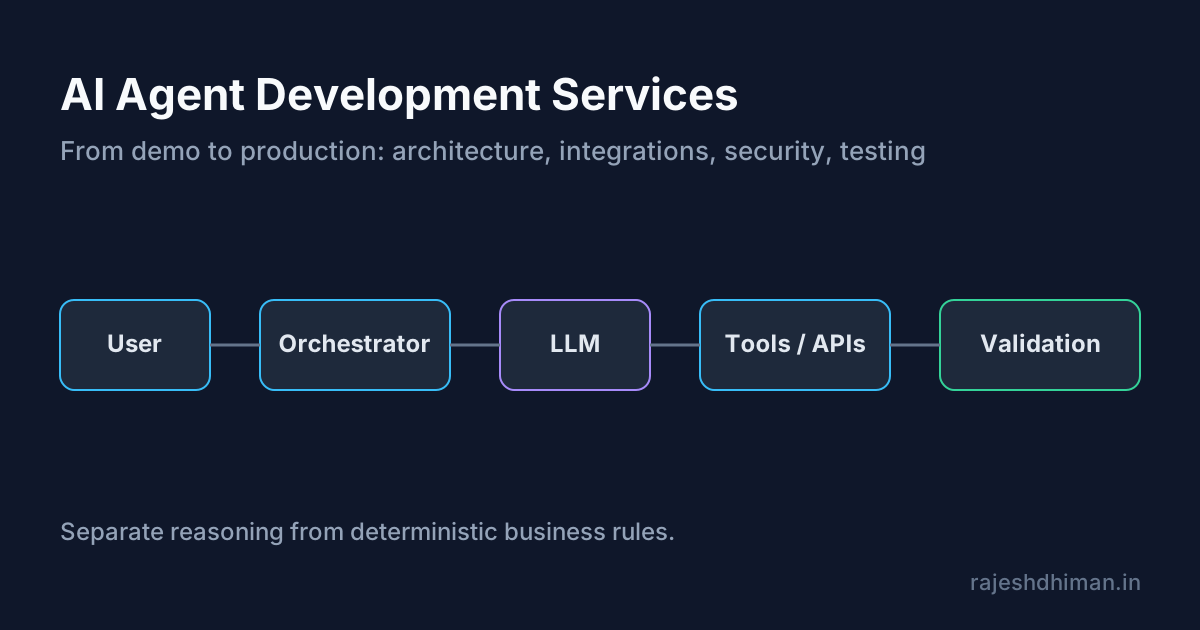
Explore AI agent development services for building reliable, production-ready AI agents. Learn about architecture, integrations, security, testing, deployment, and costs.
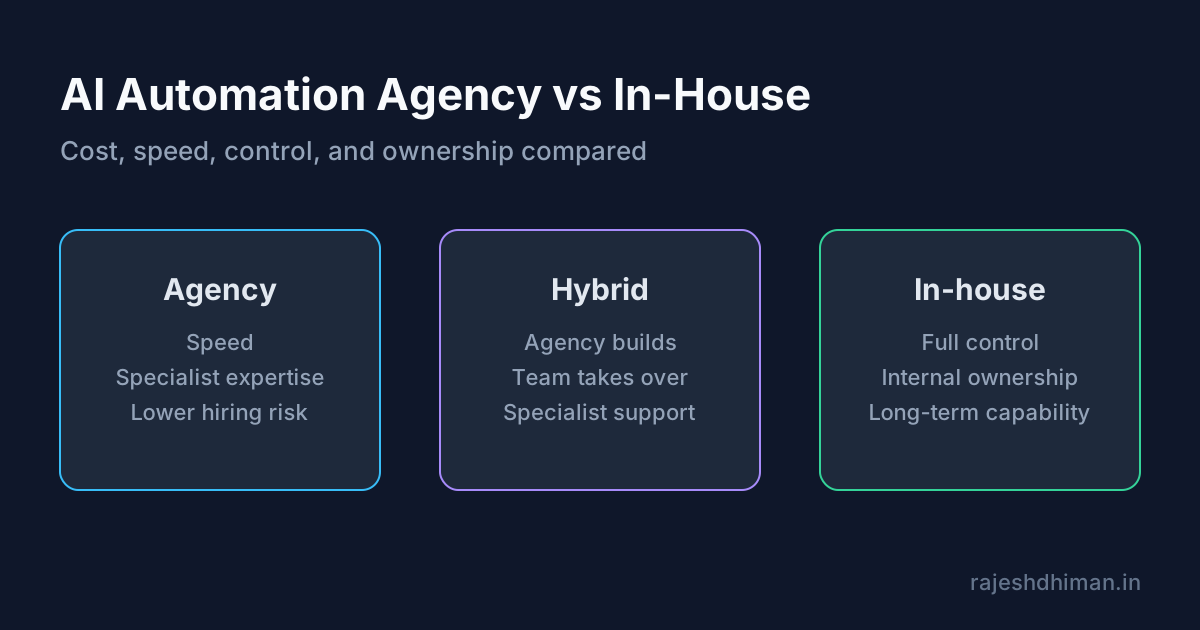
Compare an AI automation agency with in-house development. Learn about costs, services, benefits, risks, timelines, and how to choose the right approach.
Ship AI features that survive real traffic
Start from the failure modes, choose the smallest architecture that holds up, and instrument the path before you scale it.