

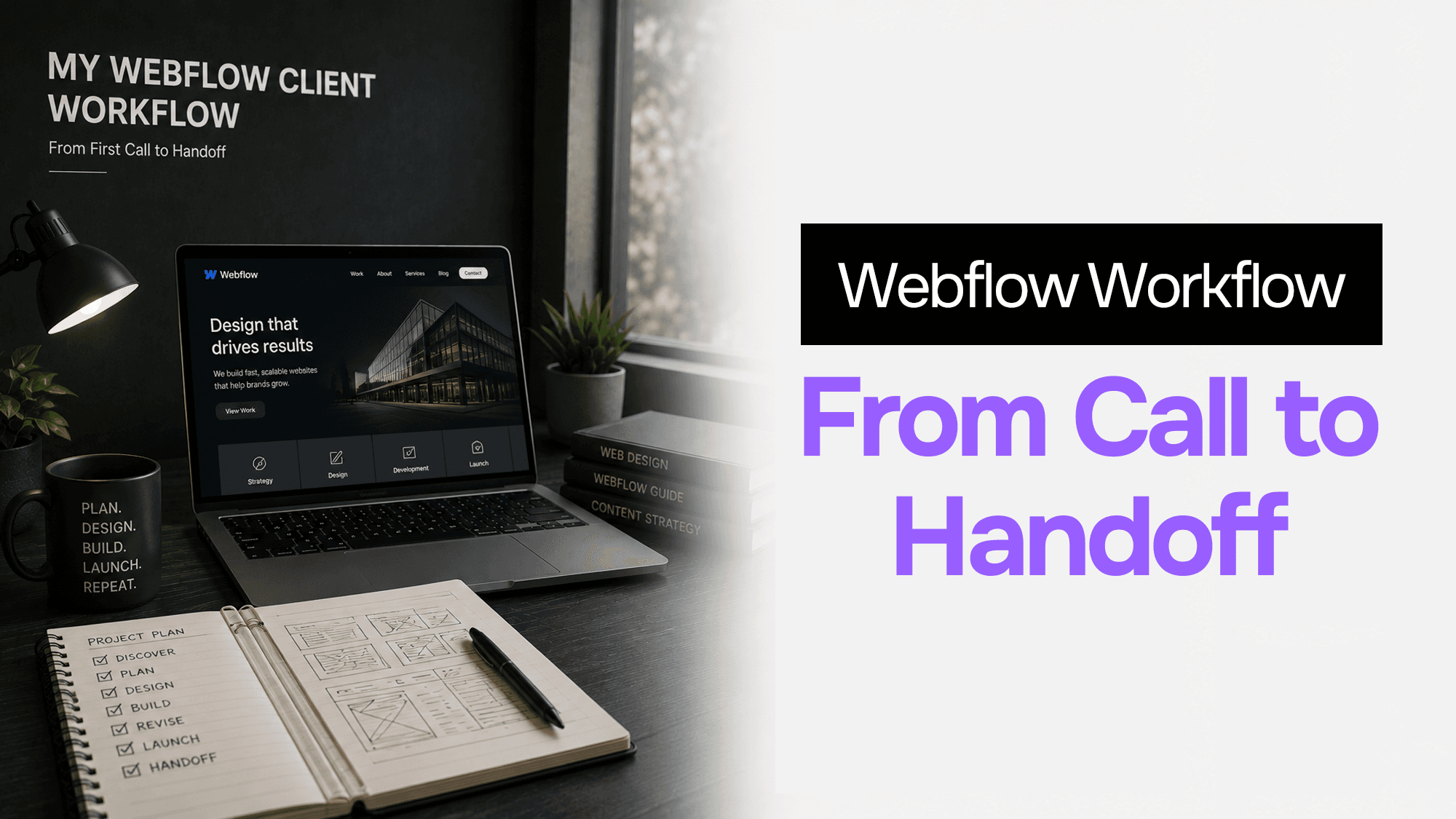
My Actual Webflow Client Workflow: From First Call to Handoff
The first client site I built in Webflow took three weeks. I was fighting the tool, unsure what to do in the designer vs. what to handle in the CMS, and spending too much time on layout fundamentals.
The most recent one took four days. Same scope, dramatically better output, and the client was editing it independently within 30 minutes of handoff.
The difference is a workflow I've refined over several years of client projects. This is exactly what that workflow looks like.
Phase 1: Scoping the Right Way
Before I open Webflow, I need to know what I'm actually building.
The questions I ask on the first call:
-
Who will update this site? If it's a non-technical person, I'm designing for Webflow's Editor experience, not just the live site. I limit custom interactions, avoid components that are confusing to edit, and add clear labels to CMS fields.
-
What CMS collections do you actually need? Blog posts, team members, case studies, services, testimonials, job listings — each one is a Webflow CMS collection. I identify these in the first call so I'm not retrofitting the CMS later.
-
What does success look like in 90 days? This usually surfaces the actual goal: booked calls, email sign-ups, product purchases. Knowing this early means the site's information architecture serves a real objective, not just "looks good."
-
Do you have existing content or are we starting from scratch? If scratch, I usually do the copy as part of the project (adds scope, but avoids the "waiting on client content" death spiral). If existing, I ask for it in Week 1.
What I deliver at the scoping stage:
- A site map (just a simple list of pages with their purpose)
- A CMS schema (collection names, field names, field types)
- A rough timeline with three milestones: design approval, development complete, handoff
This takes one 60-minute call and about 2 hours of documentation. Projects that skip this always cost more time than they save.
Phase 2: Design in Figma First
I do not open Webflow until there is an approved design.
This is non-negotiable. Building in Webflow without a design means you're making layout decisions in the tool instead of in the design phase, clients are reacting to a live site instead of a Figma mockup, and change requests cost 3x as much to implement.
My Figma setup for client projects:
- Design tokens frame first — I define the colour palette, type scale, spacing scale, and component styles before touching a single page. Everything derives from tokens.
- Desktop + mobile for key pages — I do full designs for the homepage and one inner page. Everything else is guided by the system, not designed individually.
- Interactive prototype for the client review — clients can click through the Figma prototype. They review the experience, not just static screens. Reduces "I didn't realise the nav worked like this" feedback post-build.
The approval rule: I get written approval (an email reply "looks good" is fine) before I start building. This prevents retroactive design changes that cost me time and the client money.
Phase 3: Building in Webflow
Once design is approved, this is how I structure the build.
Week 1: Foundation
- Create the project — start from a blank canvas, not a template. Templates add structure you'll spend time removing.
- Set up design tokens — add all colours, font styles, and global variables before touching a single element.
- Build the component library — button variants, card types, nav, footer. Build these once; reuse everywhere.
- Build the CMS collections — all collections with all fields, even empty ones. Getting the data model right before building pages means you'll never have to redo a component because a field was missing.
Week 2: Pages
- Build the homepage — this is always the hardest page. It references the most content types, has the most sections, and takes the most iterations.
- Build inner pages from the component library. These should go fast.
- Connect CMS collections to templates. Don't design the blog post template separately — design it as a connected template with live CMS data from the start.
Week 3: Polish + QA
- Interactions — subtle, purposeful. I avoid complex scroll animations that break on certain screen sizes or create accessibility issues.
- Mobile — I design and test on actual devices, not just the Webflow responsive preview. iPhones and Androids behave differently from each other and from the simulator.
- Performance audit — use Webflow's built-in asset optimizer, check image formats (WebP for photos), and run a Lighthouse pass.
- SEO setup — meta titles, meta descriptions, Open Graph tags for all pages, 301 redirects from any old URLs.
Phase 4: Client Review
What I share:
I share a staging link (Webflow's free staging domain, something like project.webflow.io) along with a short Loom video walking through the site. The video shows key interactions and explains anything non-obvious.
How I structure review rounds:
Round 1 is for layout and content changes. Big stuff — "this section should come before that one" or "we need to add a services section."
Round 2 is for copy and fine-tuning. Small stuff — text changes, colour tweaks, spacing adjustments.
I explicitly tell clients at the start: we have two structured review rounds included. Additional rounds are additional scope. This removes the "just one more small thing" spiral.
The approval document:
Before I publish to the live domain, I send a brief list of what's been built and get written sign-off. One email. "Please confirm everything looks good for launch." This protects both parties.
Phase 5: Launch
When the site is approved:
- Publish to the client's domain — connect their domain in Webflow project settings, update DNS, wait for SSL to provision (usually 30-60 minutes)
- Submit the sitemap to Google Search Console
- Set up Webflow Analytics or connect Google Analytics 4
- Test all forms with real submissions — make sure data is flowing to whatever the client uses (email, CRM, Notion)
- Final Lighthouse pass on the live URL — staging performance sometimes differs from live
Phase 6: Handoff
This is the part most developers rush, and it's the part that determines whether you hear from the client every week for the next year.
What I hand off:
- A 20-minute Loom video showing exactly how to use the Webflow Editor — how to edit text, swap images, add a blog post, manage CMS items
- A short written guide (I keep a template I update per project) covering: editing content, adding blog posts, updating team members, what NOT to touch (custom code embeds, collection templates)
- Access setup — I transfer the project to the client's Webflow account (or invite them as an Editor on mine, depending on the arrangement), set them up with an Editor account if needed
- A 30-minute live walkthrough call — I share my screen, walk through the video content live, and answer questions in real time
The handoff outcome I aim for: client makes their first edit unassisted, in the same session as the handoff call, while I'm still on the screen share to catch anything confusing.
🌐 This workflow works because Webflow's Editor is genuinely intuitive for non-technical clients. I switched to Webflow for client sites two years ago specifically because of the handoff experience — clients become independent owners of their sites, and I stop being their IT support.
What This Workflow Costs and What I Charge
My time per project (typical 8-10 page marketing site):
- Scoping + site map: 3h
- Design (Figma): 12h
- Build (Webflow): 20h
- Review rounds: 6h
- Launch + handoff: 4h
- Total: ~45 hours
What I charge: This is context-dependent and not what you're here for. But the point is: 45 focused hours to deliver a professional site that the client can maintain independently is a good deal for both parties.
Where the time goes wrong:
- Unclear scope → unbounded revisions
- No design approval before build → constant rework
- Waiting on client content → timeline blows out
- Skipping the handoff → support requests indefinitely
The workflow above is specifically designed to eliminate all four of these.
My Webflow Stack
Tools I use alongside Webflow on every client project:
- Figma — all design work pre-Webflow
- Loom — client review walkthroughs and handoff videos
- Notion — project management, content collection from clients
- Linear — if there's ongoing development work post-launch
- Resend — transactional emails triggered by Webflow form submissions
- n8n — automation between Webflow and the client's other tools (CRM, Slack, etc.)
- Cloudflare — DNS management for the client's domain
The Part I Didn't Expect When I Switched to Webflow
I expected to save time on builds. I did — significantly.
What I didn't expect: how much time I'd save after launch. When clients can update their own sites, the support request volume drops dramatically. A WordPress client might email me every few weeks. A Webflow client might email me once a quarter.
For retainer-based agency work that difference in post-launch maintenance isn't necessarily a revenue loss — it's freed time you can redirect to building new things. That trade-off has been consistently worth it.
Stuck on a web app, automation, or AI project?
Fifteen minutes, free. You describe the blocker, I tell you what I would fix first. No deck, no pitch — and if I am not the right fit, I will say so.
Book Your Free 15-Min Strategy CallRelated to: My Actual Webflow Client Workflow: From First Call to HandoffIf you found this article helpful, consider buying me a coffee to support more content like this.
Related Articles
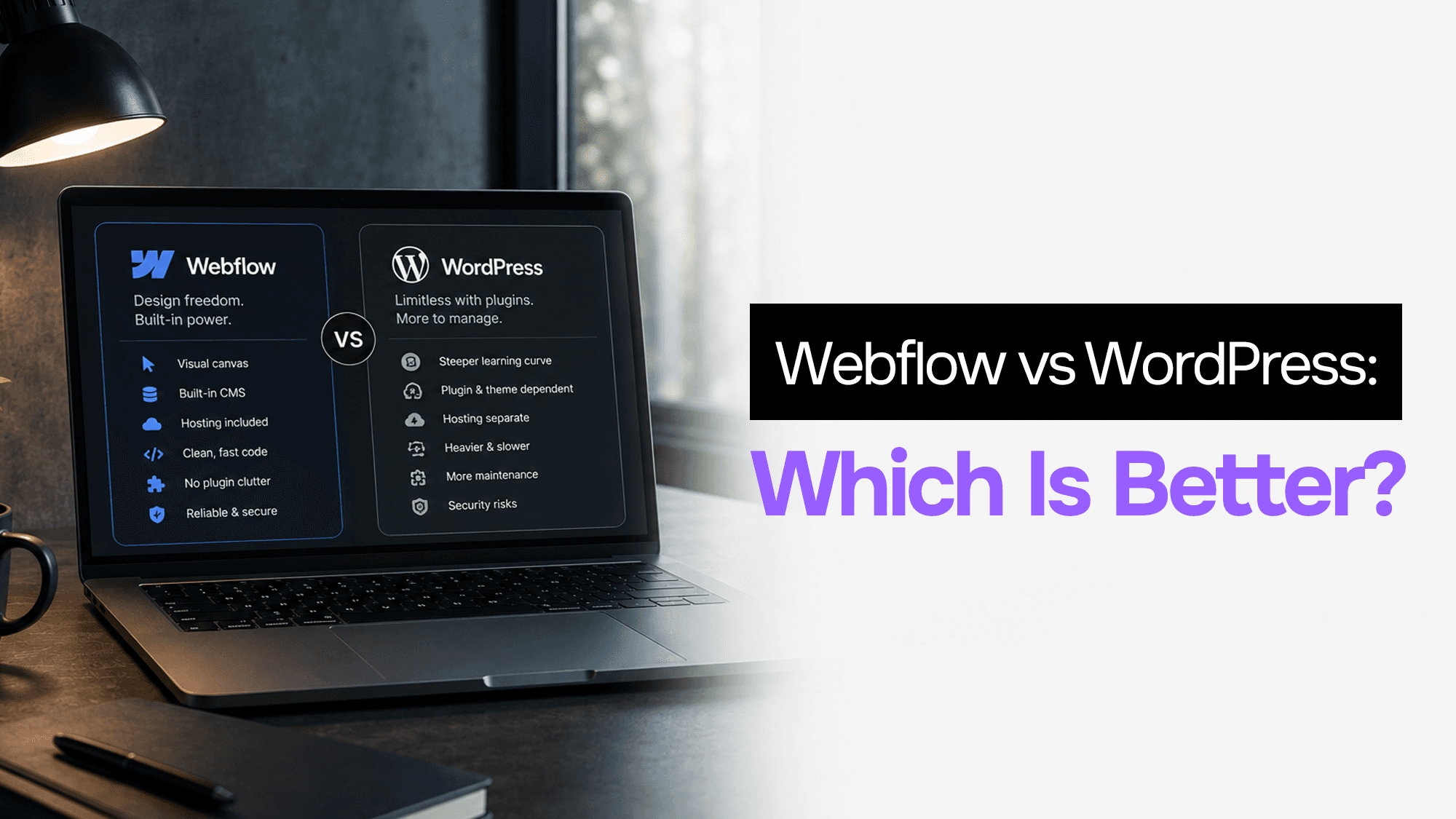
WordPress still powers 43% of the web. Webflow is growing fast. After building client projects in both, here's what actually matters when choosing between them in 2026.
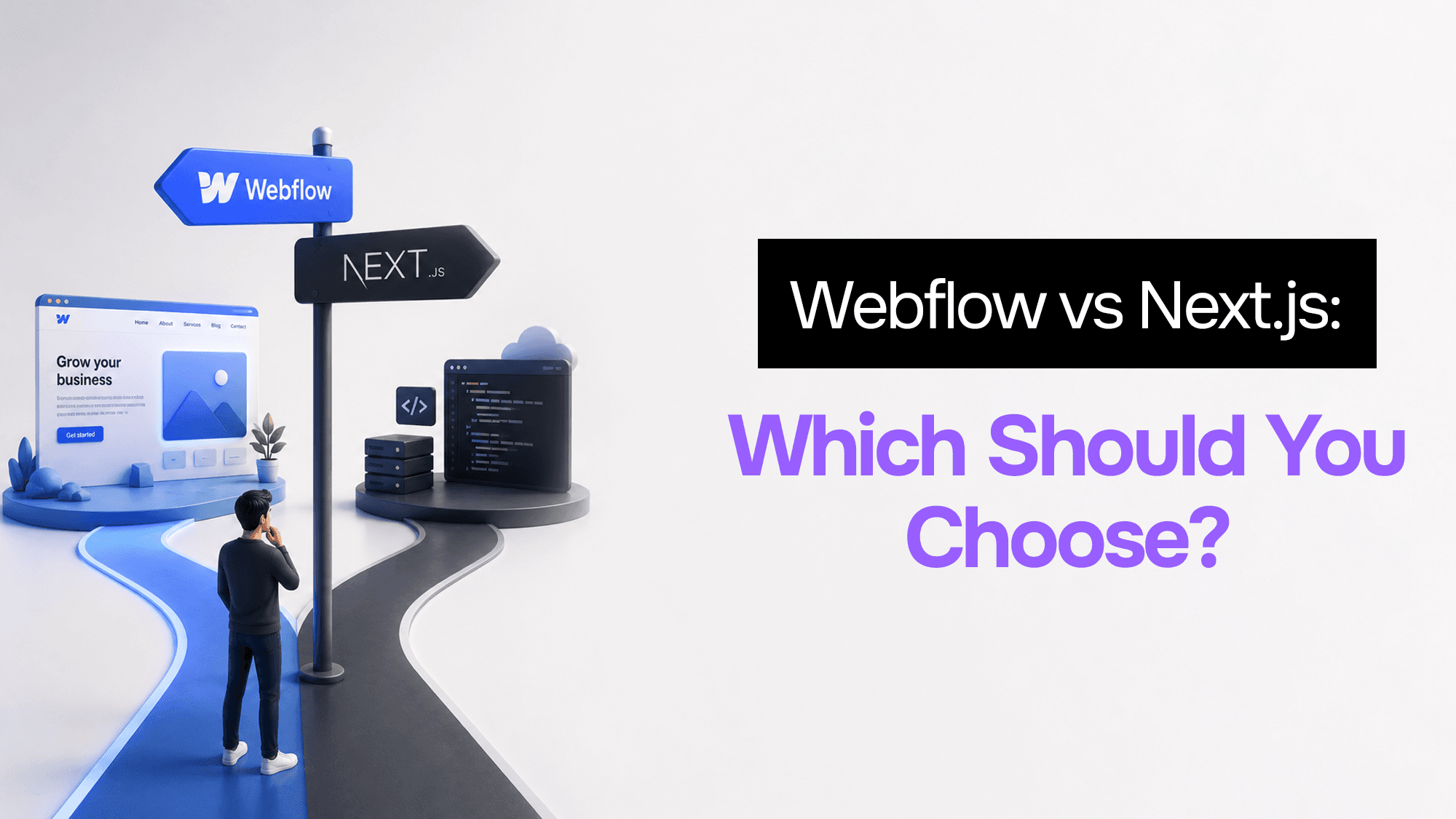
After building dozens of client projects in both, here's the exact framework I use to pick between Webflow and Next.js — and why the answer is almost never obvious.
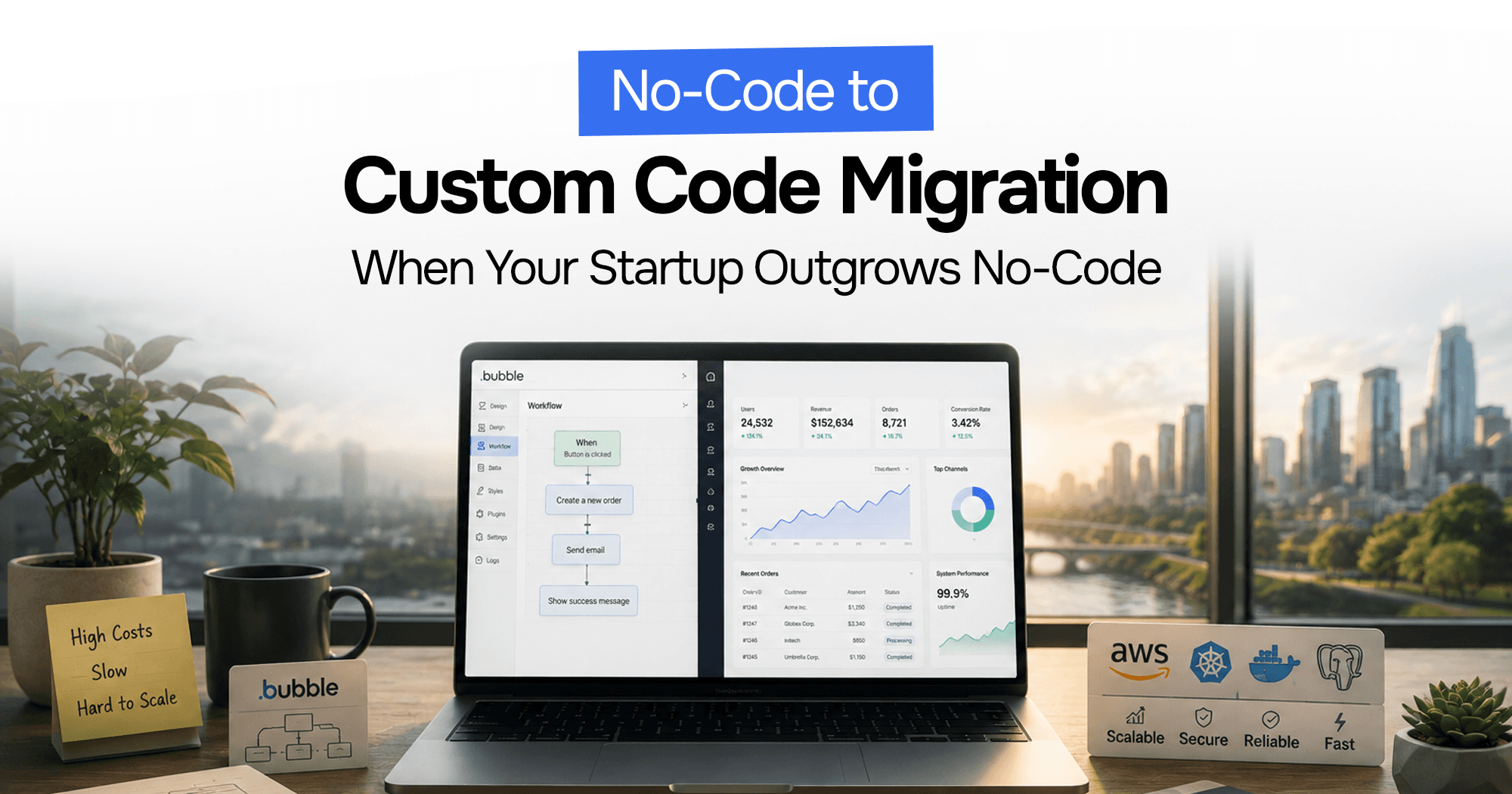
Your Bubble.io app is hitting walls — slow queries, $10K/month bills, investors asking for a real codebase. Here's the complete process for migrating from no-code to custom code without losing data or going dark.
Stuck on a web app, automation, or AI project?
Fifteen minutes, free. You describe the blocker, I tell you what I would fix first. No deck, no pitch — and if I am not the right fit, I will say so.
Book Your Free 15-Min Strategy CallRelated to: My Actual Webflow Client Workflow: From First Call to Handoff